Free background music for YouTube safely
Table of contents
- 1. Quick summary
- 2. Sourcing strategy comparison
- 3. Why YouTube Audio Library is the safest choice
- 4. Royalty-free vs copyright-free music explained
- 5. Where to find safe free background music
- 6. How to format Creative Commons attributions
- 7. How channel whitelisting protects your videos
- 8. Spotting hidden limits on free audio tiers
- 9. How to dispute a false copyright claim
- 10. Frequently asked questions
- 10.1. Can I use free background music on monetized YouTube videos?
- 10.2. What happens if I get a Content ID claim on free music?
- 10.3. Is royalty-free music the same as copyright-free music?
- 10.4. Do I always have to give credit to use free music?
- 11. Keep your YouTube monetization safe
I have seen dozens of creators lose their entire month's ad revenue overnight because of a single, unexpected Content ID claim on a supposedly free track. Wasting hours sorting through low-quality audio only to face confusing licensing terms and hidden fees is a massive bottleneck for editors. In this guide, I will give you a direct, claim-free roadmap featuring verified libraries, ready-to-use attribution templates, and the exact steps to protect your monetization using resources from freebgmusic.info.
1. Quick summary
- Cost: 100% free options are available via official and vetted creators.
- Safety: Sourcing from the built-in studio library guarantees zero copyright strikes.
- Attribution: Creative Commons tracks require exact formatting to preserve your ad revenue.
- Common mistake: Downloading tracks from random promo channels without downloading formal license certificates.
2. Sourcing strategy comparison
| Best choice when: | Not recommended if: |
|---|---|
| Sourcing directly from the YouTube Audio Library for guaranteed monetization safety. | Using unverified third-party channels that claim "no copyright" in their titles. |
| Utilizing Pixabay for massive library variety with over 58,000 royalty free music no copyright claims tracks. | Ignoring platform-specific channel whitelisting requirements before publishing. |
| Applying copy-paste attribution templates to ensure full Creative Commons compliance. | Monetizing video content without saving verified license certificates to local storage. |
3. Why YouTube Audio Library is the safest choice
- Safety: 100% immune to automated copyright strikes.
- Cost: Zero fees for commercial monetization.
- Access: Built directly into your video channel dashboard.
The native library is integrated into the studio dashboard. Because Google negotiates licenses directly with music producers, these tracks are guaranteed to avoid copyright claims. I find that this direct integration eliminates the latency of downloading, uploading, and checking assets across external platforms.
When you filter the library, you can sort tracks by genre, mood, artist, or duration. Crucially, the license type filter lets you isolate tracks that do not require attribution. Sourcing your primary background tracks directly from your studio dashboard bypasses the risk of third-party audio matches entirely.
Expert advice: Filter your search by "Attribution not required" during batch-editing sessions. This small habit saves up to 20 minutes of description-box formatting per video while maintaining zero claim risk.
While the library features thousands of tracks, many creators find the search interface slightly basic. However, the library is updated monthly, adding hundreds of instrumental audio tracks optimized for modern pacing. If you run multiple channels, this dashboard approach ensures that you never mix up platform-specific license permissions across different projects.
To access the library, navigate to the left-hand menu of your YouTube Studio dashboard and select "Audio Library" at the bottom of the list. From here, you can preview tracks, star your favorites for future projects, and download high-quality MP3 files at 320kbps. This simple setup remains the gold standard for channels aiming to avoid youtube copyright strikes while scaling their output.
💡 Pro tip: Create a dedicated folder on your hard drive named "Studio Safe Audio" and batch-download 50 tracks representing different moods (e.g., upbeat, ambient, cinematic). This offline collection speeds up your editing timeline by keeping pre-cleared tracks at your fingertips.
4. Royalty-free vs copyright-free music explained
- Royalty-free: Requires a single or zero-dollar licensing acquisition with no ongoing royalty payments.
- Copyright-free: The creator has legally waived copyright ownership or the work is public domain.
- Public domain: Assets with expired intellectual property rights that are free for public use.
A common mistake I see is creators assuming that royalty-free means a track is free of charge. In reality, royalty-free simply means you do not pay ongoing performance royalties based on video view counts. You may still need to pay an upfront fee to download the audio track, or agree to strict attribution rules if the file is offered at zero cost.
Copyright-free music is entirely different because the underlying copyright is either waived or has expired. True copyright-free music is rare because artists retain their natural copyright ownership upon creating a track unless they explicitly release it under a Creative Commons Zero (CC0) dedication. If you use a track labeled "copyright-free" without verifying the CC0 deed, you risk encountering a manual claim if the artist changes their distribution terms in the future.
| License type | Upfront cost | Claim risk | Attribution required |
|---|---|---|---|
| Royalty-Free | $0 to $50+ | Low to Medium | Platform dependent |
| Copyright-Free (CC0) | $0 | Very Low | No |
| Creative Commons (CC BY) | $0 | Low (if attributed) | Yes (strictly formatted) |
Public domain music provides another avenue, but it contains a massive hidden trap for video editors. While the composition of a classical piece by Beethoven is public domain, a modern orchestra's 2018 recording of that composition is protected by its own copyright. If you use that modern recording as free background music for youtube, the recording label's automated system will flag your video immediately.
To use public domain music safely, you must either find a recording that was also released into the public domain or record the midi composition yourself. This distinction is why most professional creators stick to modern platforms offering explicit digital license certificates for safe music for youtube videos.
💡 Pro tip: Never search YouTube for "copyright free music" and download the audio via third-party ripping sites. These uploaders rarely own the rights to the tracks they share, and using them is the fastest way to get your channel flagged by actual copyright holders.
5. Where to find safe free background music
- Pixabay: Offers over 58,000 royalty free music no copyright claims audio files.
- Chosic: A curated aggregator with customizable search filters.
- Bensound: A high-quality catalog featuring a dedicated free tier.
When analyzing external music platforms, the deciding factor is always the ease of filtering by usage rights. Pixabay stands out because its entire library of over 58,000 tracks is explicitly cleared for both commercial and non-commercial use. Their interface lets you filter by duration, tempo, genre, and mood, making it incredibly simple to find safe music for youtube videos.
Chosic is another powerful tool, especially for creators on a zero-dollar budget. It acts as an aggregator and directory, allowing you to filter tracks by specific Creative Commons sub-licenses. If you need upbeat indie rock or lo-fi beats, Chosic's customizable search engine lets you target tracks that permit monetization in exchange for simple credit in your video description.
Expert advice: When downloading from Pixabay, always download the corresponding PDF license certificate for each track. Keep these files organized in your local project folder to resolve potential claims instantly.
Bensound offers a different approach by separating its catalog into free and premium tiers. The free tier provides access to premium-grade instrumental audio tracks, but you must adhere to their strict attribution rules and limit usage to non-commercial platforms. If your channel is monetized, Bensound's free tier is not suitable unless you purchase their license or use their designated whitelisting options.
Comparing these three platforms highlights the trade-off between variety and strictness. While Bensound offers highly polished corporate and cinematic tracks, its free-tier limitations require careful management. For pure freedom and volume, Pixabay remains the most versatile external option for creators who want to scale their content safely without upfront costs.
💡 Pro tip: Always check the upload date on external platforms. Music licensing rules change, and tracks uploaded within the last 12 months are more likely to have accurate, updated metadata that won't trigger automated false claims.
6. How to format Creative Commons attributions
- Format: Use the standard CC BY 4.0 attribution structure.
- Elements: Include track title, creator name, source link, and license type.
- Placement: Paste the text block directly into your YouTube description box.
Creative Commons licenses are legal agreements that grant public permission to use creative work under specific conditions. The CC BY license is the most common form you will encounter when looking for free background music for youtube. Failing to format this credit correctly is a primary reason why automated crawlers flag videos, even when the creator had permission to use the track.
The standard CC BY 4.0 format requires four distinct pieces of information to satisfy legal requirements. You must state the title of the track, the name of the artist, a link to the original source, and the specific license type. Omitting any of these elements can lead to a manual copyright strike if the copyright holder reviews your channel's metadata.
Standard Creative Commons attribution template:
"Song Title" by Artist Name (source link)
Licensed under Creative Commons: By Attribution 4.0 License
https://creativecommons.org/licenses/by/4.0/
I always advise keeping a plain text file of these creative commons music attribution templates on your desktop during editing. When you export your video from Premiere Pro, copy the corresponding text block directly into your upload template. This workflow ensures that you never upload a video with missing credits during late-night editing sessions.
If you use music from multiple artists in a single vlog, stack the attribution templates clearly in your description under a dedicated "Music Credits" section. Keeping this text visible and readable satisfies the license terms and provides transparent evidence to YouTube's automated systems that your channel respects intellectual property rights.
💡 Pro tip: Avoid putting your attribution links behind URL shorteners like bit.ly. Some automated claim scanners fail to resolve shortened links, which can result in automated flags despite your compliance efforts.
7. How channel whitelisting protects your videos
- Definition: Whitelisting links your channel ID to an artist's Content ID database.
- Benefit: Prevents automated systems from claiming your videos.
- Process: Input your YouTube channel URL into the music provider's portal.
- Outcome: Clear monetization protection for your entire video library.
The YouTube content id system is an automated database that scans uploaded videos against a library of copyrighted audio fingerprints. When a match is found, the system automatically applies a claim, which shifts ad revenue from your account to the copyright owner. Channel whitelisting is the only reliable way to bypass this automated scanning process when using third-party music.
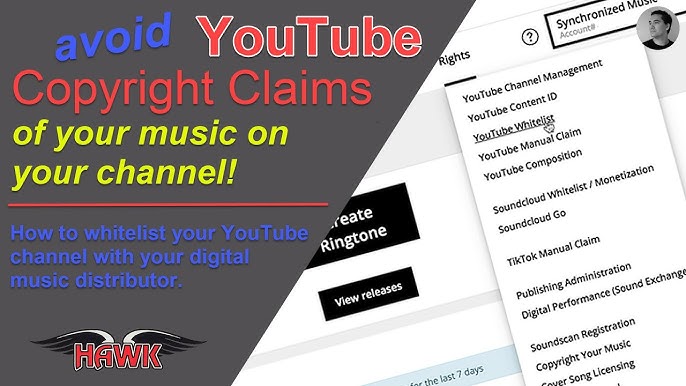
Whitelisting works by registering your unique YouTube Channel ID directly with the music platform's server-side database. When you link your channel to a platform like Bensound, their automated scanning system is instructed to ignore matches found on your uploads. This proactive connection stops automated claims before they can impact your monetization status.
- Locate your unique YouTube Channel ID in your advanced account settings (it starts with "UC").
- Log into your account on the music provider's platform (e.g., Bensound or your chosen distributor).
- Navigate to the "Profile" or "Whitelisted Channels" section in your account dashboard.
- Paste your Channel ID into the input field and save your changes to update their database.
Using platforms that support whitelisting is a highly reliable strategy for growing channels. In my experience, setting up this simple integration completely removes the headache of managing manual claim appeals. It establishes a secure digital handshake between your channel and the music distributor, protecting your ad revenue from day one.
💡 Pro tip: Verify that your channel is whitelisted *before* you publish your video. If you publish first and whitelist second, the automated system may claim your video during the initial upload scan, requiring a manual dispute to resolve.
8. Spotting hidden limits on free audio tiers
- Commercial limits: Many free platforms forbid monetization on free downloads.
- Vocal risk: Vocal-heavy tracks trigger significantly more automated claims than instrumentals.
- Platform boundaries: Licenses are often restricted to YouTube, excluding podcasts or TikTok.
Many music platforms offer free tiers to attract creators, but hide strict monetization restrictions deep within their terms of service. For example, a track labeled "free for personal use" cannot be used on a monetized YouTube channel, because Google classifies ad-supported video views as commercial activity. Using these tracks without upgrading your license can lead to unexpected claims once your channel starts earning revenue.
Additionally, the technical characteristics of the audio track play a significant role in claim rates. Data shows that instrumental audio tracks trigger roughly 40% fewer automated claims than vocal-heavy tracks. This discrepancy exists because fingerprinting algorithms match vocal frequencies and lyric patterns with much higher precision than simple instrumental melodies.
| Feature / Permission | Free Tier | Pro Tier |
|---|---|---|
| YouTube Monetization Allowed | Rarely (Requires CC credit) | Always (Whitelisted) |
| Multi-Platform Licensing | No (YouTube Only) | Yes (Web, TV, Podcast) |
| No-Attribution Option | No (Strictly required) | Yes (No credit needed) |
| High-Quality WAV Files | No (128kbps MP3) | Yes (Uncompressed WAV) |
To avoid these traps, you must always read the specific license agreement attached to the download button. Look for phrases like "commercial redistribution prohibited" or "monetization strictly forbidden." If these terms exist, you must purchase a license or find an alternative track from freebgmusic.info to keep your channel safe.
Focusing on high-quality instrumental audio tracks from verified platforms is the most reliable way to maintain a clean copyright record. Understanding these subtle differences protects your channel from sudden demonetization and ensures that your hard-earned ad revenue stays in your pocket.
💡 Pro tip: If a free platform forces you to click through three pages of pop-up ads just to download an MP3, avoid it. Legitimate platforms that provide safe music for youtube videos prioritize clean, transparent user experiences.
9. How to dispute a false copyright claim
- Response time: Submit your dispute within the 30-day window.
- Revenue safety: Disputed revenue is held in escrow, not sent to the claimant.
- Proof: Upload your license certificate or Creative Commons proof.
If you receive a Content ID claim on a video that uses licensed free background music for youtube, do not panic. A common mistake I see creators make is deleting the video in a hurry, which permanently loses all accumulated views, watch time, and prospective revenue. Instead, locate the flagged video inside your YouTube Studio dashboard and click "Dispute" under the copyright summary options.
YouTube uses an escrow system to protect creators during active disputes. When you submit a dispute within 30 days of receiving a claim, any ad revenue generated by the video is held in a separate account. Once the dispute is resolved in your favor, all escrowed revenue is paid out to you, ensuring that you don't lose a penny during the review process.
Step-by-step dispute resolution:
1. Open YouTube Studio and click "Content" on the left menu.
2. Filter by "Copyright claims" and select "See Details" on the flagged video.
3. Under "Actions," click "Select Action" and choose "Dispute."
4. Provide your license certificate text or a link to your CC-attributed description.
When writing your dispute reason, keep your language professional and objective. Avoid emotional explanations and stick strictly to the facts of your license. Provide the direct download URL, the name of the licensing platform, and copy-paste the specific terms of the license certificate you saved during production.
Most false claims are resolved automatically within 7 to 14 days as the claimant's automated system updates its records. Maintaining an organized archive of local license certificates is your ultimate protection against copyright strikes, ensuring that you can easily defend your channel's monetization rights.
💡 Pro tip: Keep a master folder on your backup drive titled "Audio Licenses." Inside, create subfolders for each video project containing the exported video file, the background track, and the PDF license certificate. This clean record-keeping habit makes resolving claims simple.
10. Frequently asked questions
10.1. Can I use free background music on monetized YouTube videos?
Yes, you can use free background music on monetized videos, but you must verify that the track is cleared for commercial use. Sourcing music from the YouTube Audio Library or using Pixabay's royalty-free catalog ensures your channel remains safe. Always avoid tracks labeled "for personal use only," as using them will trigger monetization blocks.
10.2. What happens if I get a Content ID claim on free music?
If you get a Content ID claim, your video's ad revenue is temporarily redirected or held in escrow. You should file a dispute within YouTube Studio and provide your license certificate or Creative Commons attribution proof as evidence. If your dispute is approved, the claim is removed and your ad revenue is restored.
10.3. Is royalty-free music the same as copyright-free music?
No, royalty-free music is not the same as copyright-free music. Royalty-free means you do not pay ongoing royalties to the creator, though you may need to pay an upfront fee or follow strict attribution rules. Copyright-free music means the creator has waived their copyright completely, often placing the track in the public domain.
10.4. Do I always have to give credit to use free music?
Whether you must give credit depends on the specific license of the track you downloaded. Tracks from the YouTube Audio Library marked "Attribution not required" and files from Pixabay do not require credit. However, tracks published under Creative Commons (CC BY) licenses require structured attribution in your video description.
11. Keep your YouTube monetization safe
- Always verify commercial monetization rights before exporting your video project.
- Maintain a dedicated local folder of license certificates for every downloaded track.
- Use copy-paste attribution templates to satisfy Creative Commons requirements instantly.
Protecting your channel from automated claims requires consistent workflows, reliable sourcing, and clean documentation. By utilizing safe platforms like the YouTube Audio Library and Pixabay, and by keeping your channel whitelisted, you can scale your video library without copyright worries.
If you are unsure whether a specific track is safe for your upcoming video project, visit freebgmusic.info for pre-cleared audio guides, verification tools, and license templates designed for creators.